Add your first groups
Creating structures using groups
Section titled “Creating structures using groups”A group is a collection of entries — terms in your software that you want to translate. For example, your footer can be a group, and the labels inside it are individual entries. Groups can also contain sub-groups, similar to a folder structure. This lets you organize entries the way your UI is structured. The project is the top level of this hierarchy and can only contain groups (not entries directly).
You can find more details here:
For example, you could create a group for “Pages” and then a sub-group for each page. Here is a simple structure:
Directorypages/
Directoryhome/
- …
Directoryabout/
- …
Directorygeneral/
Directoryheader/
- …
Directoryfooter/
- …
You can create groups in two places:
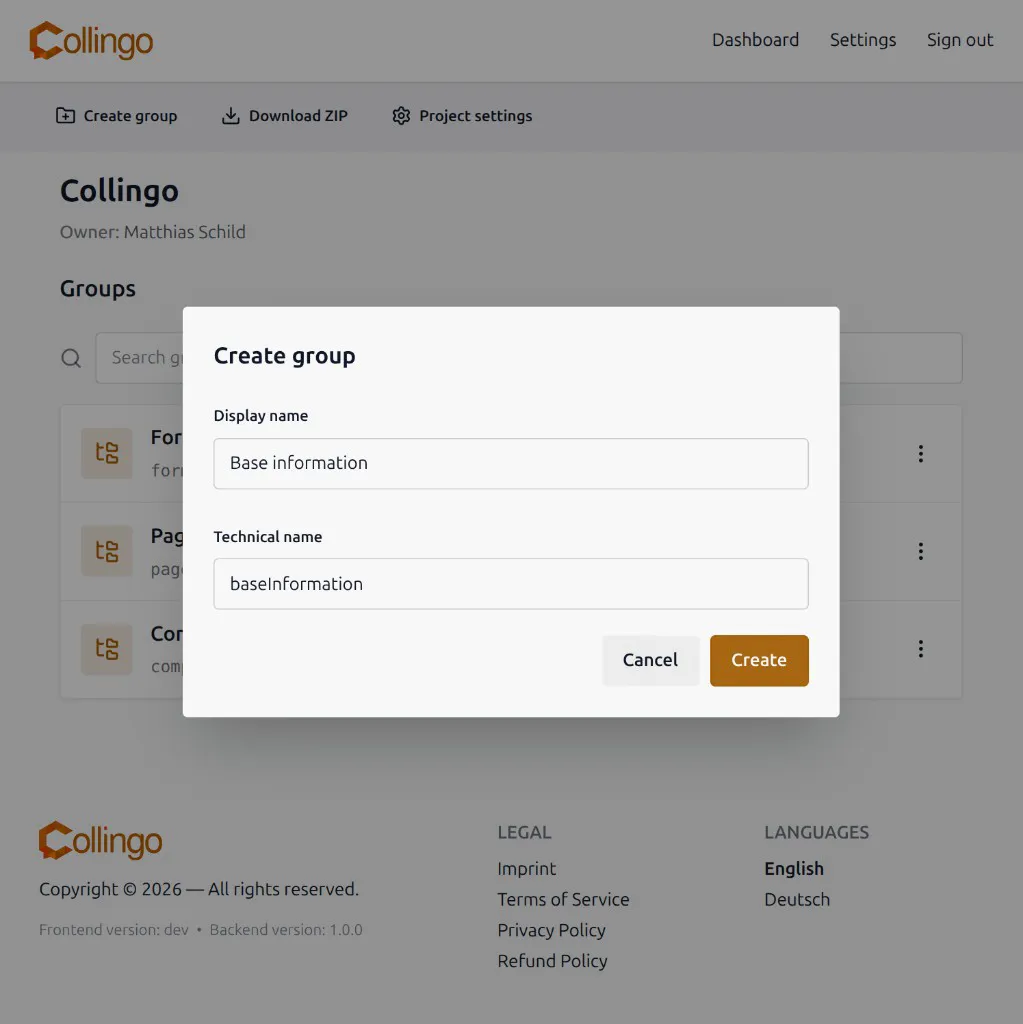
- On the project page, to create a top-level group — use Create group
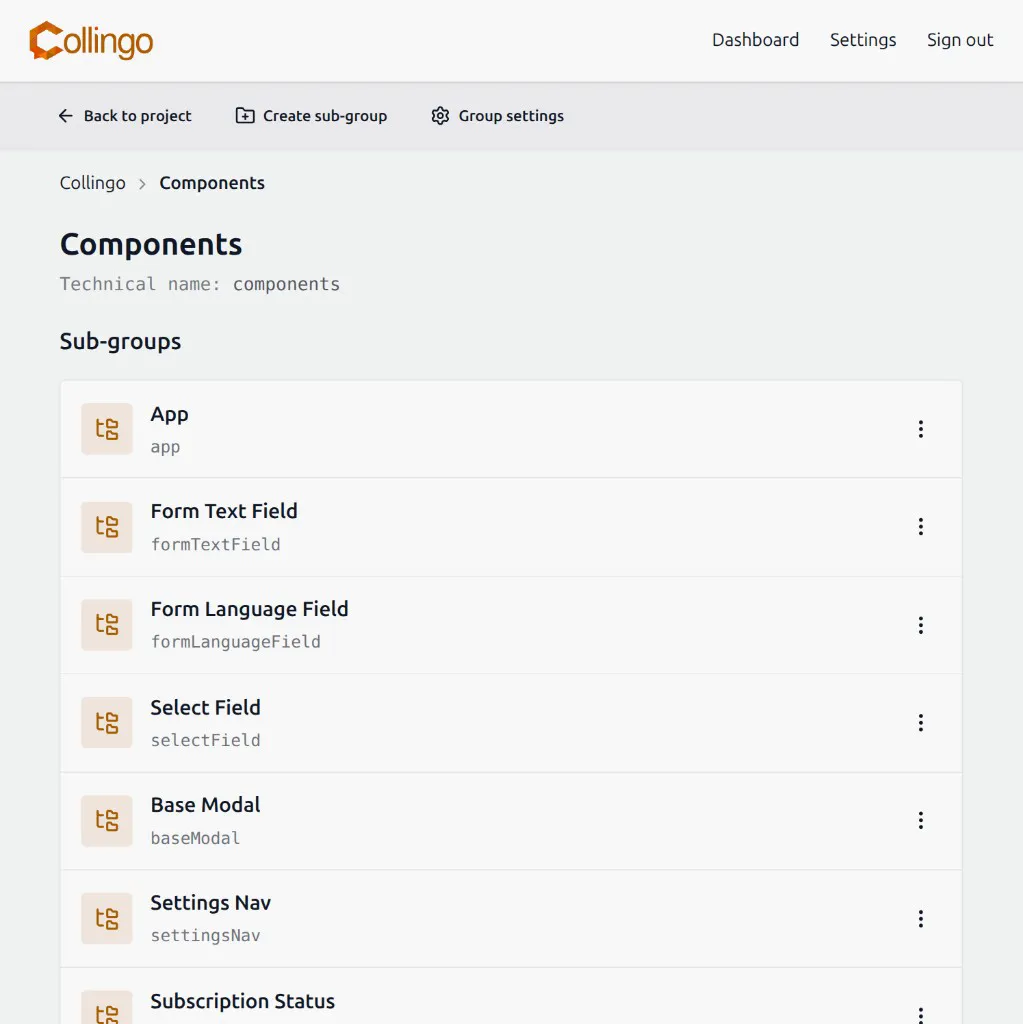
- On a group page, to create a sub-group — use Create sub-group
Both open a dialog that asks for:
- A display name, readable for your project members
- A technical name, used as part of the key path in your software and exports
For the display name, choose something descriptive so you and your team understand the group.
For the technical name, follow the naming convention used for export keys. It must be unique among siblings under the same parent. The first character must be a lowercase letter; after that you can use letters and digits.
Examples: pages, landingPage, error404, profilePage.
See Technical Names for more examples. See Managing groups for editing, moving, and deleting groups.
After you open a group, the group page shows the breadcrumb, display name, technical name, and any sub-groups. From the action bar you can go Back to project, Create sub-group, or open Group settings. Entries for this group appear further down on the same page.